Routing preferences
Head to the Glimpze app, open Settings > General, there you find a section called “Routing & Timeouts”.
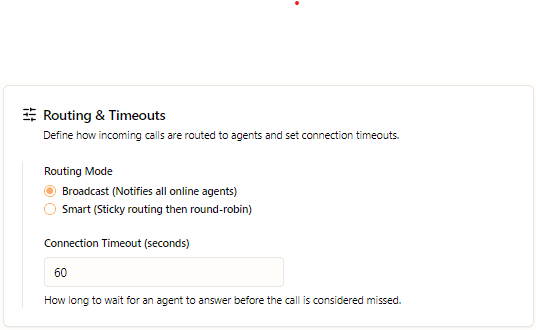
Routing determines who gets incoming call notifications via the widget. You have the following options:
- Broadcast: the default setting. Notifies all available agents when a call comes in, the first to pick up, gets the call.
- Smart: this ensures that a returning visitor always gets the same agent. The call will look for the assigned agent , which is either manually set in the visitor profiles or live sessions overview, or whoever the visitor interacted with the first time. If the assigned agent is offline or unavailable, the smart routing with fall back to a round robin routing, where the available agents get calls in turns.
We usually recommend broadcasting for smaller teams.
Notification preferences
Your routing preferences determines who gets the call , which is project-wide. You can adjust your own notificaiton sound preferences by clicking on your profile in the top right corner, and then “Profile settings”.
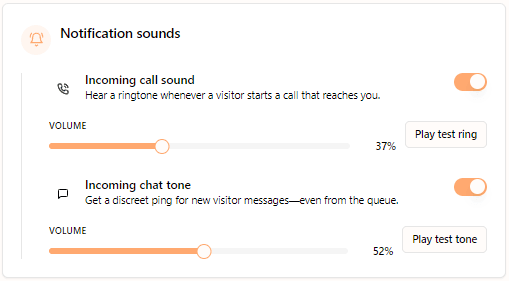
Here you can enable/disable sounds for incoming messages and calls. Note that message sounds only appears for your own or unclaimed chats (i.e. chats with no agent responses)