Creating the widget
Head to the Glimpze app, open Settings > Widgets, and click “New widget”. Give your widget a name - this can easily be changed later.
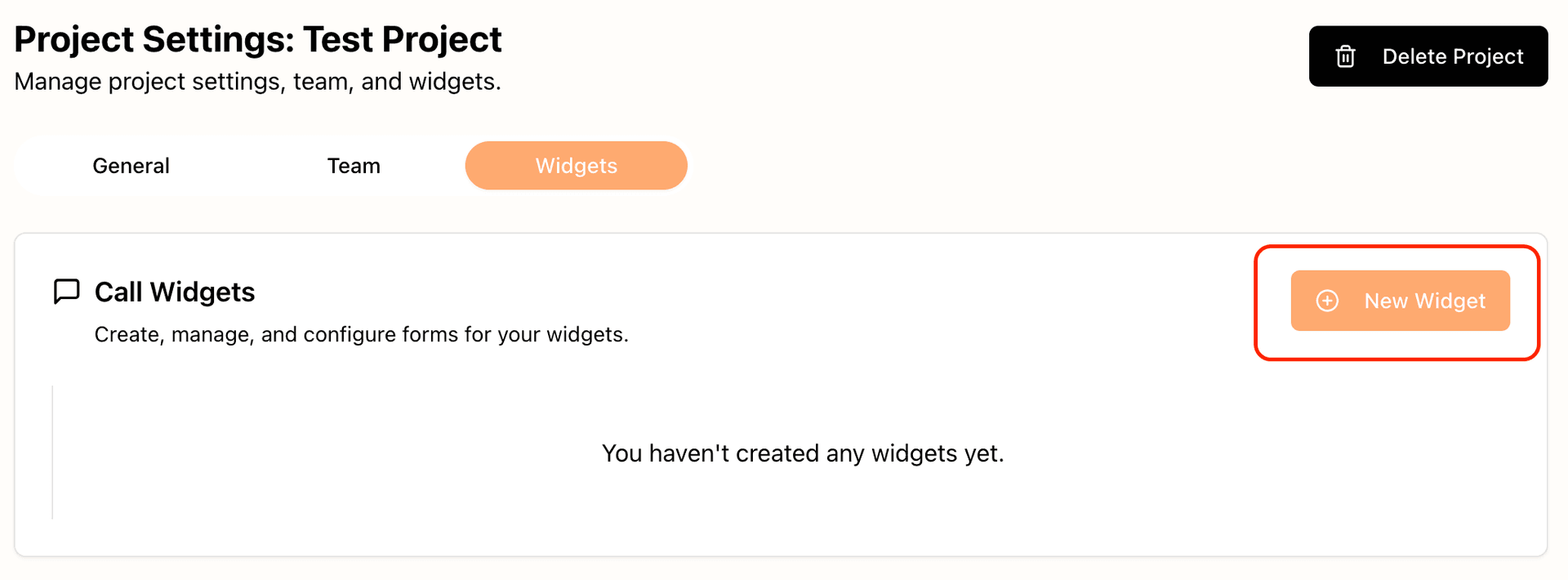
Voila! Now you've created your first widget. You can start using this widget immediately or you can choose to style it first, which we cover in the next section.
Custom fields
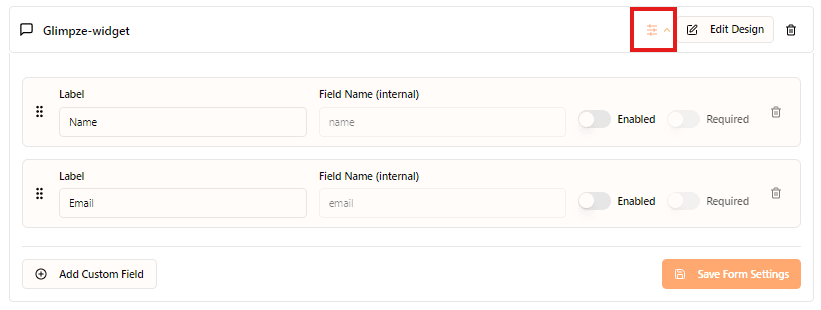
After creating your widget click the custom fields dropdown button. Here you can set and adjust custom input fields for your widget. These fields determine the information your visitor can/must input before starting a call or chat. You can disable all fields, allowing visitors to join calls quickly, or you can create additional custom fields, such as company name or size, etc.
Styling the widget
We always recommend styling your widget, so it fits your brand and tone-of-voice. In the appearence step, you'll quick see that it's separated in two tabs; Content and Styling.
Content
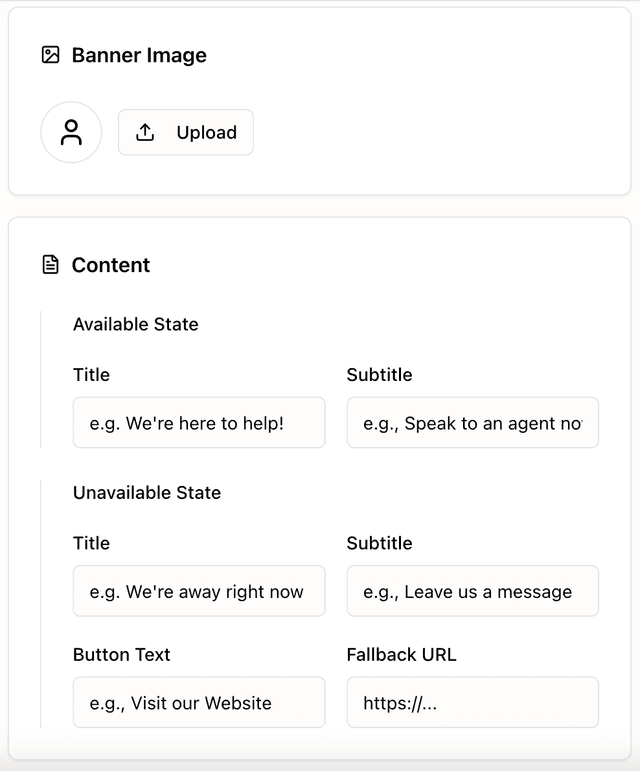
Start by adding some content to your widget. This includes a Banner Image, which will be displayed at the top of the open widget. You can also choose to change the Text Content , which will determine the text, e.g. title, your widget displays in available and unavailable states. Here's a quick overview of the configuration options:
- Titles: This sets the main title of your widget. Remember to set the title in both available and unavailable state.
- Subtitles: Subtitles are displayed below your main title. Use them to encourge some kind of action, or convey information; e.g. “We usually reply in a few minutes”
- Button Text: Sets what the main unavailable state button displays, i.e. the CTA displayed when no agents are online.
- Fallback URL: Sets the URL which the button links to. Use this for your demo booking for instance.
Custom Buttons
You can also add custom buttons to you widget, which can be displayed in both available and unavailable states. These are great to always display your booking link or main product pages.
Styling
In the styling tab, you'll find numerous styling options. We recommend using your brand colors and font, but otherwise play around in the editor until you find an ideal design. A quick note colors:
- Primary: Sets the color of the call cta, custom buttons, inline triggers, and your main fallback button in unavailable state.
- Secondary: Sets the color of the text/chat button.
- Background: Sets the background color of the widget and the color of visitor message bubbles.
Widget triggers
Proceed to the next step, either using the progress bar at the top or click “Next” at the bottom. Here you'll find your widget triggers , which are buttons that opens the widget.
Floating trigger
This is your default trigger, which will display a round CTA in the right/left corner of your website. You can set it to display an available agents profile image (highly recommended!) or simply a call icon. See the Glimpze team's floating trigger in the bottom right of your screen.
Inline triggers
These triggers are essentially buttons, with a special div attribute that makes them open the widget when clicked. They'll by default have the same color as the primary color picked in the previous step. If you want to customize it yourself, just apply a css class to the div when implementing the trigger.
Implementing your widget
It's super simple to implement your widget and it only requires inserting a single script into your website header. Go the implementation step in the progress bar and copy the Main Installation script. Now insert this into your global HTML header.
<!DOCTYPE html>
<html>
  <head>
    <title>My Website</title>
    <!-- Glimpze script goes here -->
    <script> </script>
  </head>
  <body>
    <!-- Your website content -->
  </body>
</html>
Now you're good to go! Your floating trigger will now be displayed on your site, and the widget can be activated.