
On this page
- What technical issues derail sales video calls?
- How do you prevent technical issues before a sales call?
- How do you recover gracefully when tech fails mid-call?
- What should you say when the technology breaks on a call?
- What backup plans should you have ready?
- How do you keep the deal moving after a technical failure?
- Key takeaways
- Sources
A rep joins the demo on time, the buyer is already there, the deck is loaded. Then the audio drops to a robotic stutter, the screen share freezes on a spinner, and the first five minutes go to "can you hear me now?" instead of the product.
The buyer's attention, which peaked the moment they clicked the link, drains while everyone waits for the connection to sort itself out.
Technical trouble on a sales call is common, and it costs you in a way that never shows up on a quota. Every frozen frame and dropped line is a small tax on trust, and enough of them nudge a warm buyer toward the competitor whose call simply worked.
Most of it is preventable, and the part that is not can be recovered if you have a plan before you hit join.
This guide covers the technical issues that derail sales video calls, how to prevent them, how to recover when something breaks anyway, what to say in the moment, and the backup plans worth keeping one click away.
What technical issues derail sales video calls?
The technical issues that derail sales video calls cluster around four things: audio, video, screen sharing, and the internet connection underneath all of them, with audio the failure buyers forgive least.
A soft picture is annoying. Sound that cuts out, echoes, or lags behind the speaker's lips makes the conversation itself impossible.
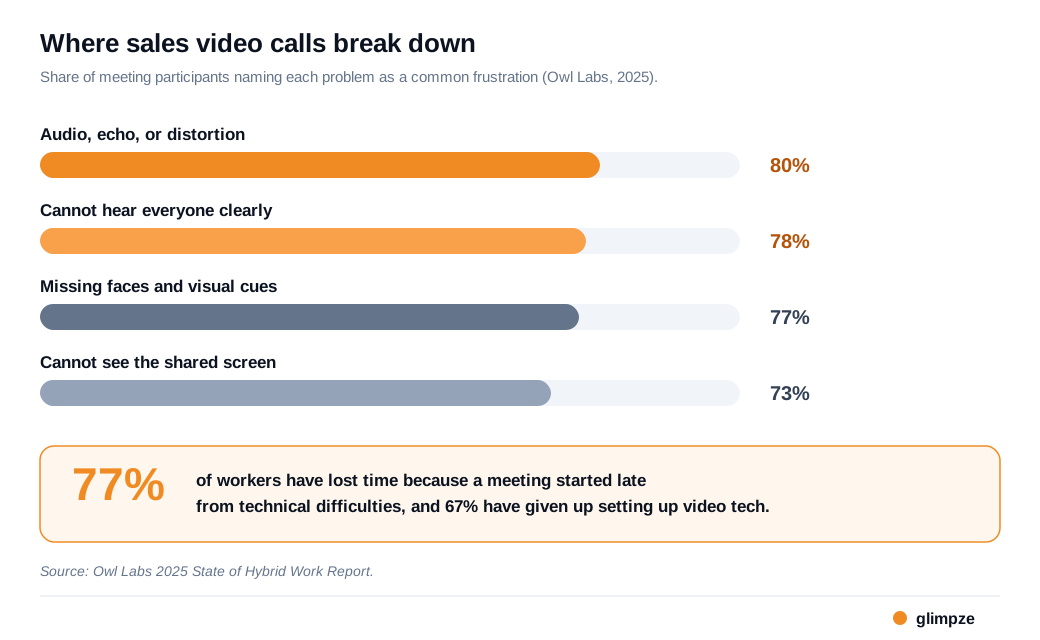
The frequency data backs that ranking. Owl Labs' 2025 State of Hybrid Work Report asked workers which meeting problems they hit most:
- Audio, echo, and distortion topped the list at 80%.
- Not being able to hear everyone, 78%.
- Missing faces and visual cues, 77%.
- Not being able to see the shared presentation, 73%.
Every one of those maps to a moment where a buyer stops following the pitch and starts wrestling with the tool.
Video problems come next, and they are quieter but still costly. A camera that will not turn on, a frozen frame, or a face that pixelates into blocks removes the exact signal that makes video selling work.
Screen sharing is its own category of trouble. Demodesk's rundown of the most common video conferencing problems points out that sharing often forces a user to install software, grant permissions, and hand over control, a clunky sequence that burns time and sometimes fails outright right when you need to show the product.
Underneath all of it sits the connection. Low upload speed, a saturated home network, or an unstable Wi-Fi signal produces the audio lag, frozen video, and dropped calls people blame on the app.
The setup itself is a tax too. Owl Labs found that 77% of workers have lost time because a meeting started late from technical difficulties, and 67% have given up trying to set up video technology because it was too hard. On a sales call, that lost time comes straight out of your selling window.
How do you prevent technical issues before a sales call?
You prevent most technical issues by testing your gear on a real connection before the call, giving your internet enough headroom for HD video, and closing anything that competes for bandwidth or pops up on a shared screen.
Prevention is boring and it is where nearly all the payoff lives, because a problem you catch at your desk never reaches the buyer.
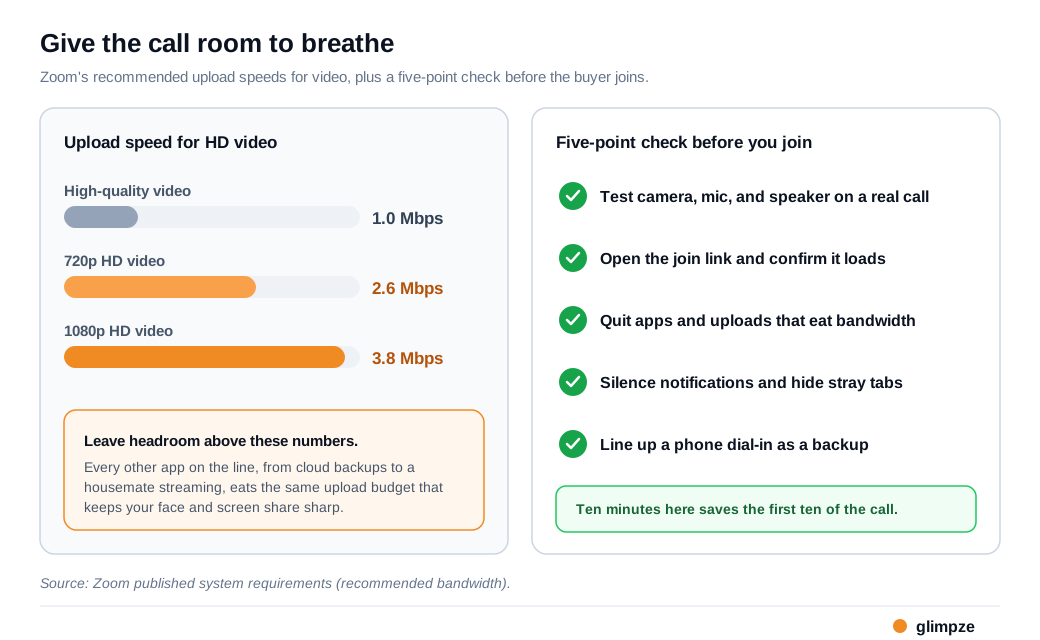
Start with a real test, not a glance in the mirror app. Run a test meeting, speak a few sentences to confirm the mic and speaker, check that your camera turns on, and open the actual join link to make sure it loads in the browser or client you plan to use.
If the app has an update waiting, install it before the call rather than during it. Two minutes of this catches the "my microphone is not selected" class of failure that otherwise eats your opening.
Then give the connection room. Zoom's published system requirements recommend about 1.0 Mbps up for high-quality video, 2.6 Mbps for 720p, and 3.8 Mbps for 1080p HD, and those are floors, not targets. Aim comfortably above them, because your video, your screen share, and everything else on the line draw from the same upload budget.
Here is a worked example. Say your home plan gives you 10 Mbps upload, plenty for a 3.8 Mbps 1080p call. Then a cloud backup kicks off and takes 5 Mbps, a housemate's video call grabs 3, and a file syncs in the background.
Your available upload drops to around 2 Mbps, below the 1080p threshold, so the app quietly downgrades your video and the buyer sees a slideshow of frozen frames. Nothing broke. The line was oversubscribed. Quitting the backup before the call gives you the headroom to stay sharp.
Close the rest of the clutter. Quit apps you do not need, silence notifications so a Slack ping does not flash across a shared screen, and share the single window or tab you plan to present rather than your whole desktop.
Cutting join friction helps too, which is one reason browser-based tools matter here. Letting a high-intent visitor start a live video call directly on your site, with no download and no login, removes the install-and-permission step that Demodesk flags as a frequent point of failure. Pairing it with live chat gives a buyer a lower-friction fallback if video will not cooperate on their end.
How do you recover gracefully when tech fails mid-call?
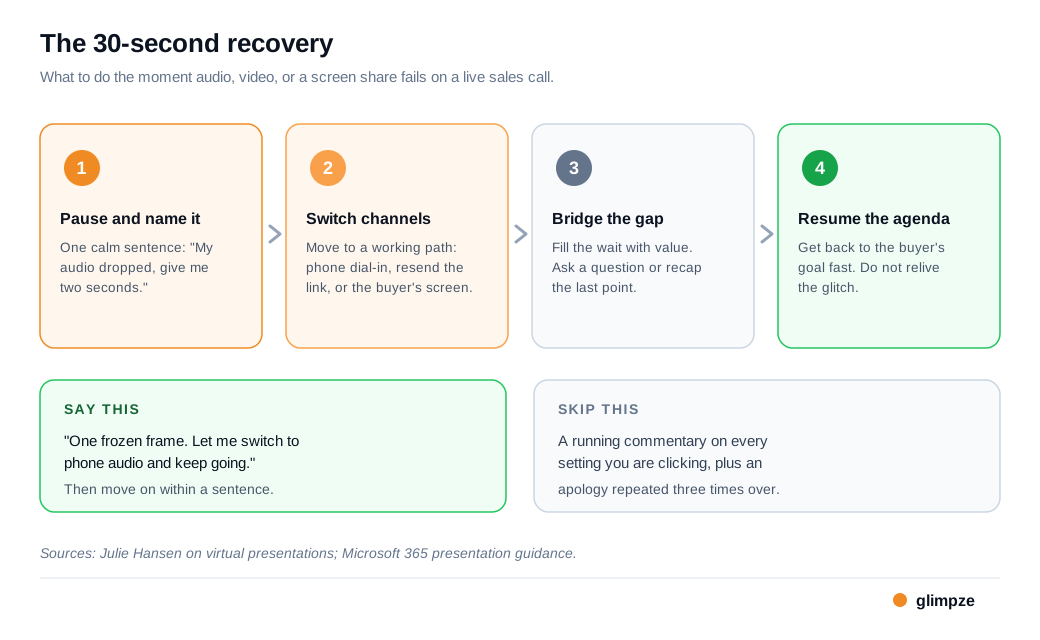
You recover gracefully by naming the problem in one calm sentence, switching to a working channel fast, and getting back to the buyer's agenda before the silence stretches.
The buyer will judge you less on the glitch itself and more on how composed you stay while you handle it.
Composure is the whole game, and it is a choice you make in the first two seconds. Presentation coaches and the guidance from Microsoft's own team agree on the same move: stay calm, take a breath, and briefly tell people what is happening instead of freezing or fumbling in silence.
A rep who visibly panics tells the buyer that a routine hiccup is a crisis. A rep who says "looks like my audio dropped, give me two seconds" keeps the room steady.
Switch channels rather than trying to fix the broken one live. If your audio garbles, dial in by phone and keep talking. If your screen share freezes, ask the buyer to share their screen instead, or send the file and walk through it.
Sales trainer Julie Hansen makes the point that the buyer is there for your message, not your tech troubles, so the goal is to reach a working path in seconds, not to narrate every setting you are clicking.
Consider the cost of not moving fast. On a 30-minute demo, a snag that eats 6 minutes has claimed 20% of your time before you count the buyer's drifting attention.
If one in six of your calls hits a snag like that and you run 12 demos a month, you lose the better part of a full call to dead air. The rep with a fallback ready spends 30 seconds on the switch and keeps the rest. The rep who improvises loses the call. Silence during the scramble is what does the damage, so fill it as you go.
What should you say when the technology breaks on a call?
Say something short, honest, and forward-looking, then move, because a few plain words land far better than a scramble of apologies. The script matters less than the length. Buyers relax when the rep sounds like this happens sometimes and is no big deal.
Keep the acknowledgment to one sentence. "My audio is cutting out, let me jump to phone real quick" tells the buyer what is happening and what you are doing about it, and that is enough.
The Forbes Coaches Council's guidance on recovering from technical difficulties makes the same case: briefly acknowledge the issue, reassure the group, and keep them engaged rather than going quiet while you troubleshoot.
Over-apologizing does the opposite of what you want, because saying "I am so sorry" three times draws more attention to the failure than the failure itself did.
Use the wait to do real work. While the screen share reloads, ask a question you were going to ask anyway ("while this comes back, how is your team handling this today?") or recap the last point. That turns 20 seconds of dead air into discovery, and keeps the buyer talking instead of checking email.
Humor helps if it fits your natural style, and it backfires if you lean on it. Julie Hansen borrows an improv rule for the moment a tool misbehaves: "use it, lose it, or laugh at it."
A light, quick line can break the tension. Microsoft's guidance adds the caution that too much of it can undermine your credibility, so one dry aside is plenty, and then you are back to the buyer's agenda.
What backup plans should you have ready?
Keep three backups one click away: a second way to talk, a second way to show, and a second way to meet. Each covers a different failure, and lining them up before the call is what lets you switch in seconds instead of improvising while the buyer waits.
The second way to talk is a phone dial-in. Have the meeting's phone number and PIN saved, or your own phone charged and ready, so a garbled mic never ends the conversation.
Microsoft's checklist for handling technical difficulties recommends exactly this kind of redundancy: a spare device, a backup copy of your materials, and a phone number to call in on, plus a support contact if your setup is complex. A second network helps too. If your Wi-Fi drops, a phone hotspot can carry the call while you sort it out.
The second way to show is a copy of whatever you planned to present, ready to send. Keep the deck, a one-page summary, or a short recorded walkthrough of the product in a tab so that if the live demo will not load, you can share the link and narrate over it.
A recorded run of the core flow is a strong safety net, because it shows the product working even when the live environment is not.
The second way to meet is a fast, specific reschedule. If the call is truly unrecoverable, do not let it dissolve into "let's try again sometime." Offer two concrete times before you drop, send the invite while you are still on the line, and make the buyer's next step obvious.
Tight lead routing and notifications help here, so a raised hand gets back to an available rep quickly instead of cooling off in an inbox.
How do you keep the deal moving after a technical failure?
You keep the deal moving by following up within the hour with exactly what the buyer missed, so a bad connection does not become a lost opportunity. A rough call is recoverable when the next touch is fast and useful.
Send a short recap the same day. List what you covered, attach or link whatever the frozen screen share was supposed to show, and answer the one question that got cut off. That closes the loop the technology opened and signals that you are organized, which is often what a glitchy call quietly puts in doubt.
Then reconnect on the buyer's timeline, not a generic drip. If the call was genuinely cut short, propose a focused 15-minute follow-up rather than a full redo, since the buyer already sat through the setup once.
For teams built around an inbound sales motion, the priority is to reach the buyer again while the interest is still warm, because a technical failure threatens momentum more than it threatens the demo.
Handle the recovery well and a broken call can end up building more trust than a flawless one, because the buyer got to see how you operate when something goes wrong.
Key takeaways
- Audio fails hurt most. Owl Labs found audio, echo, and distortion is the single most common video call problem at 80%, ahead of hearing, faces, and screen sharing, so protect sound before anything else.
- Prevention is where the payoff lives. Test your camera, mic, speaker, and join link on a real connection, and keep upload headroom above Zoom's roughly 3.8 Mbps recommendation for 1080p video.
- Recover by moving, not narrating. Name the issue in one calm sentence, switch to a working channel like phone audio in seconds, and get straight back to the buyer's agenda.
- Say less than you think. A short honest line beats a stack of apologies, and filling the wait with a question or a recap turns dead air into discovery.
- Keep three backups one click away. A phone dial-in to talk, a deck or recorded walkthrough to show, and two concrete reschedule times to meet cover the common failures.
- Follow up fast to save the deal. Send a same-day recap with whatever the frozen screen missed, then reconnect while the interest is warm, because momentum is what a technical failure threatens.
TAGS

Written by
Daniel SemeckyCo-founder & CEO
Daniel is the co-founder and CEO of Glimpze. He spends his days talking to revenue teams about how to catch high-intent visitors before they bounce, and writes about inbound sales, lead conversion, and building a motion where marketing and sales actually share a number.


