
On this page
- What is sticky navigation, and how does it differ from standard navigation?
- What are the pros of sticky navigation?
- What are the cons of sticky navigation?
- Is sticky navigation bad for accessibility?
- How does sticky navigation affect conversions?
- When should you use sticky navigation, and when is standard navigation better?
- How do you test sticky navigation on your own site?
- Key takeaways
- Sources
Scroll down almost any long web page and watch the menu. On some sites it slides up and out of view with everything else. On others it stays locked to the top of the screen, riding along as you read. That second pattern is sticky navigation, and the choice between it and a menu that scrolls away is one of the small decisions that quietly shapes how easily people move around your site.
The debate usually collapses into slogans. One camp says a menu that is always visible is always better. The other says a fixed bar wastes screen space and gets in the way. The research is more specific than either claim, and the right answer shifts with the length of your page, the device your visitors use, and how much you have packed into the header.
This post covers what sticky navigation is and how it differs from standard navigation, the real pros and cons, whether it helps or hurts accessibility, how it moves conversion numbers, when to use each pattern, and how to test the change on your own site.
What is sticky navigation, and how does it differ from standard navigation?
Sticky navigation is a menu or header that stays fixed in place as the visitor scrolls, so the links remain on screen no matter how far down the page they travel. Standard navigation, sometimes called static navigation, sits at the top of the page and scrolls out of view along with the rest of the content.
The distinction is one line of code. A standard header is part of the normal document flow, so it moves up and off the screen as the page scrolls. A sticky header uses a CSS position value (position: sticky or position: fixed) that pins the bar to the viewport, so it detaches from the flow of content and holds its spot while everything behind it scrolls.
The practical difference shows up the moment a reader wants to go somewhere else. With standard navigation, someone three screens down who wants pricing has to scroll all the way back to the top, find the menu, and click. With sticky navigation, the same link is already sitting a thumb-flick away. On a short page nobody notices the difference. On a long article, a documentation page, or a product listing, that scroll-back tax repeats on every navigation attempt.
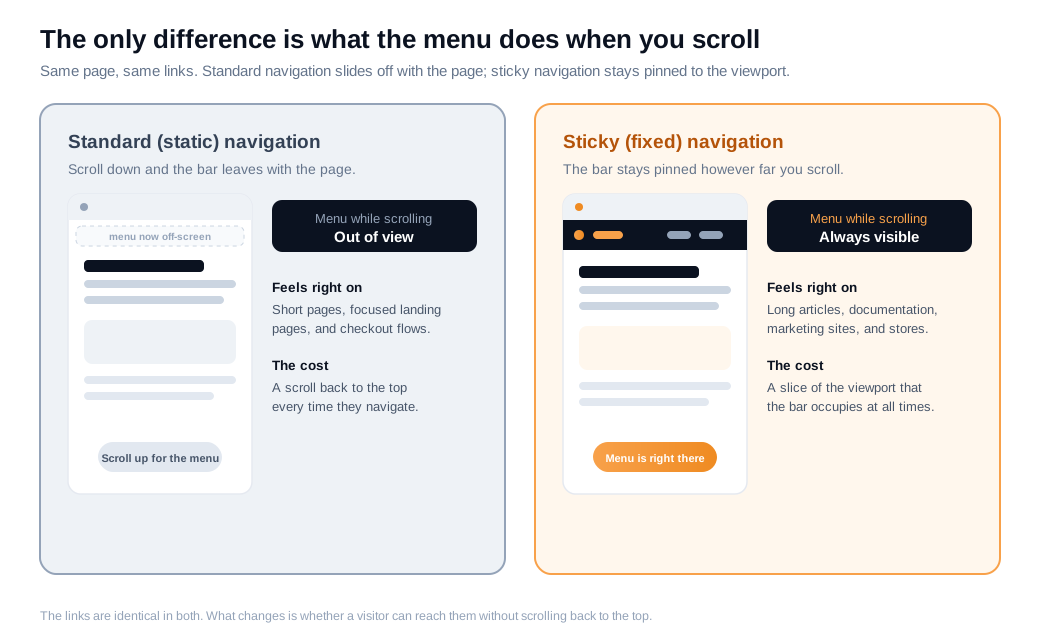
Neither pattern is more or less of a "menu" than the other. They hold the same links and lead to the same places. The only variable is whether those links stay within reach once the visitor starts scrolling, and that single variable is what the rest of this comparison turns on.
What are the pros of sticky navigation?
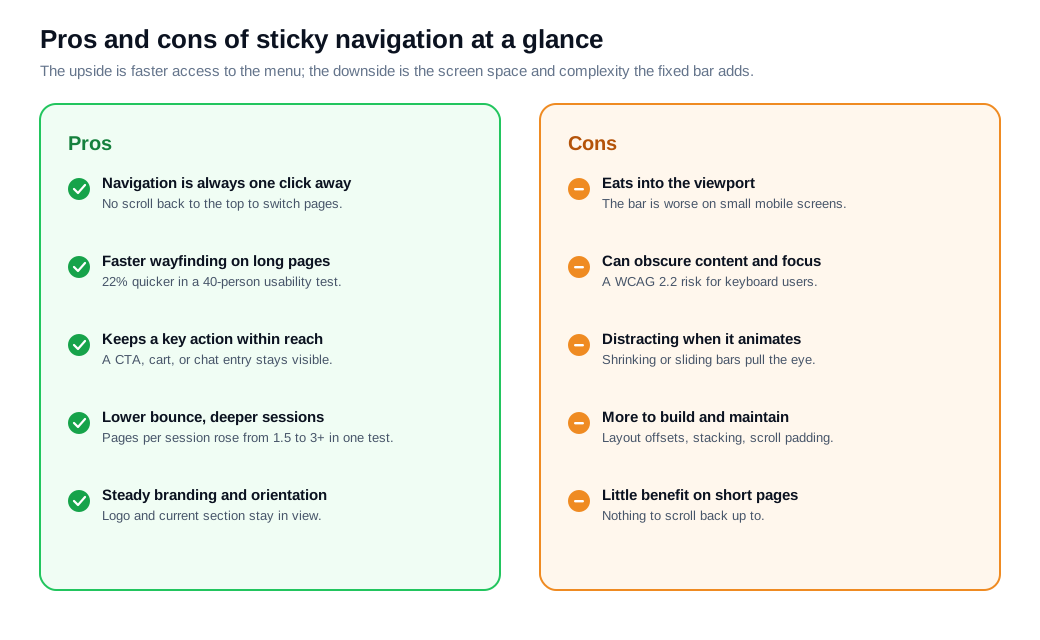
The main advantage of sticky navigation is speed of movement: keeping the menu on screen lets people jump between sections without the interruption of scrolling back to the top, and that saved effort adds up across a visit. The clearest evidence comes from a small but often-cited usability study.
In 2012, designer Hyrum Denney built two nearly identical test sites, one with a standard menu and one with a sticky menu, and asked 40 participants to complete five tasks on each. Writing up the results for Smashing Magazine, he found that the sticky version was navigated about 22% faster, which worked out to roughly 36 seconds shaved off a five-minute visit. Tellingly, when asked afterward, none of the participants could point to what had changed between the two interfaces. The benefit registered as speed, not as a feature anyone consciously noticed.
There is a tidy principle underneath that result. Fitts's Law says the time to reach a target depends on how far away and how large it is, and a menu that is always on screen is always close. Nielsen Norman Group makes the same point in its guidance on sticky headers: a persistent bar keeps navigation one interaction away instead of one scroll-and-search away.
Two more pros follow from keeping the header in view. First, whatever you place in that bar stays reachable, so a primary call to action, a shopping cart, or a persistent live chat entry point remains one click away at the exact moment a reader decides to act. Second, the logo and the highlighted current section stay visible, which keeps people oriented on long pages the way signage keeps you oriented in a large store.
What are the cons of sticky navigation?
The main drawback of sticky navigation is that the fixed bar permanently occupies part of the viewport, and that cost is highest on the small screens where space is already scarce. A header that feels trim on a wide monitor can swallow a meaningful share of a phone screen, leaving less room for the content people actually came to read.
Sizing is the fix, and the guidance is consistent. Nielsen Norman Group frames it as maximizing the content-to-chrome ratio, meaning visitors should see mostly content and as little navigation furniture as possible. Vitaly Friedman's 2023 write-up of sticky menu guidelines pushes the same way: keep the sticky bar slim, and be especially careful on mobile, where a tall header plus a browser toolbar can leave an uncomfortably thin strip of readable page. Satisfaction drops once the persistent chrome starts eating too much of the screen.
Three other costs are worth naming. A sticky bar can cover content, hiding the line a reader was on or the element they were about to click. It can distract if it animates, since a header that shrinks, recolors, or slides on every scroll pulls the eye away from the words. And it adds engineering work, because fixed positioning brings layout offsets, stacking-order bugs, and anchor links that jump content underneath the bar unless you account for them. On a genuinely short page, none of this buys you anything, because there is nothing to scroll back up to in the first place.
Is sticky navigation bad for accessibility?
Sticky navigation can meet accessibility standards, but a fixed bar that is sized or built carelessly creates a specific, well-documented problem: it can cover the element a keyboard user has just moved focus to. When someone tabs down a page, the browser scrolls to bring the focused control into view, and a tall sticky header can end up sitting right on top of it.
This is now an explicit standard. WCAG 2.2 added success criterion 2.4.11 Focus Not Obscured (Minimum) at Level AA, which requires that a focused element not be entirely hidden by other content such as a sticky header or footer. The W3C even documents the specific failure, F110, for sticky headers and footers that completely obscure the item a keyboard user has tabbed to. A person who cannot see where their focus landed cannot reliably complete a form or a checkout.
The remedy is small and worth building in from the start. Set scroll-padding-top on the page to the height of the sticky bar plus a little buffer, so the browser scrolls focused elements clear of the header instead of behind it. Add a working skip link, keep the bar navigable by keyboard and screen reader, and make sure any in-page anchor links land below the fixed header rather than under it. Handle those, and stickiness stops being an accessibility liability.
How does sticky navigation affect conversions?
Sticky navigation affects conversions indirectly, by removing friction from the path between a visitor's intent and the page that answers it, which is why the measured wins tend to show up first in engagement and only then in a sales number. A menu rarely gets credit for a purchase, yet it sits on the road to most of them.
The most concrete public data comes from a Convert.com A/B test that ran a sticky menu against a static one for two months on a site whose traffic was roughly 70% mobile. Pages viewed per session rose from about 1.5 to more than 3, and bounce rate fell, so the team kept the sticky version. More movement between pages is exactly what you would expect when the menu stops disappearing, and deeper sessions give a high-intent visitor more chances to reach a page that converts.
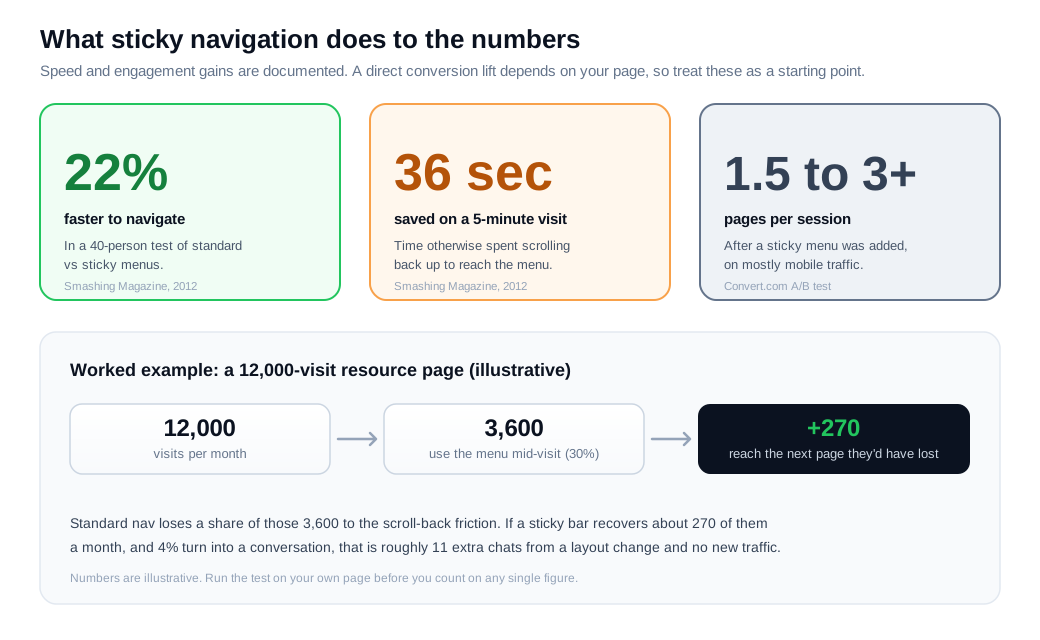
Here is an illustrative worked example. Say a resource page draws 12,000 visits a month, and 30% of those visitors (3,600) reach for the menu partway through to jump to pricing or another section. With a standard menu, some share of them give up rather than scroll back to the top. If a sticky bar recovers roughly 270 of those navigation attempts each month, and 4% of the recovered visitors start a conversation or request a demo, that is around 11 extra chats from a layout change, with no new traffic bought. The figures are made up to show the shape of the effect, and the real point is that the gain compounds on long pages where navigation happens mid-visit. For a visitor who is clearly circling but not committing, pairing that ever-present header with a well-timed proactive nudge can catch them before they leave.
When should you use sticky navigation, and when is standard navigation better?
Use sticky navigation on long pages where people navigate mid-visit, and keep standard navigation on short pages and focused flows where a fixed bar would only cost you room. Marketing sites, blogs, documentation, and product listings are the natural home for a sticky header, because visitors scroll far and change direction often. Short landing pages, single-purpose campaign pages, and checkout steps usually do better with a static header, since the whole page fits in a screen or two and every pixel of the viewport is working toward one action.
Device matters as much as page length. On desktop there is room to spare, so a slim sticky bar is nearly free. On mobile the same bar is expensive, which is why the current best practice is a partial or adaptive approach. Friedman's guidance recommends letting the header hide as the visitor scrolls down (when they are focused on reading) and reappear the instant they scroll up (the gesture that usually means they want to navigate). Many mobile sites also move the most important destinations to a bottom tab bar within thumb reach and leave the top bar for the logo alone.
A short decision rule covers most cases. If your page is long enough that a reader will want the menu before they reach the bottom, make it sticky and keep it slim. If the page is short, or the goal is to hold attention on a single task, let the menu scroll away and give the content the full screen.
How do you test sticky navigation on your own site?
You test sticky navigation by shipping it to half your traffic and comparing engagement and conversion against the static version, then backing the numbers with scroll maps and session recordings that show whether the bar is helping or getting in the way. Because a header touches every page, even a small effect is worth measuring rather than guessing.
Run it as a clean A/B test. Change one thing, whether the header is fixed or static, split traffic evenly, and let the test reach statistical significance instead of calling it the moment one side edges ahead. Watch pages per session and scroll depth alongside your primary conversion, because those engagement metrics tend to move first and tell you whether the mechanism is working. Then add qualitative checks: a scroll map shows how far people get and whether the bar sits over anything important, and session recordings on real phones reveal whether the header is covering content or crowding the thumb zone in ways an aggregate number hides.
Numbers explain where visitors stall, though not why. Watching a few sessions, or simply asking through a live conversation on a high-intent page, fills in the reason a heatmap cannot. For teams running inbound sales, that qualitative signal often points at a header that is a touch too tall or a link that is mislabeled, a fix no amount of stickiness would have delivered on its own.
Key takeaways
- Sticky navigation keeps the menu on screen while the page scrolls, where standard navigation scrolls away and forces a trip back to the top to change sections.
- The core pro is speed, with one 40-person usability test finding sticky menus about 22% faster to navigate, roughly 36 seconds saved on a five-minute visit.
- The core con is lost viewport, which bites hardest on mobile, so keep the bar slim and favor a header that hides on scroll down and returns on scroll up.
- Accessibility is a real constraint, since WCAG 2.2's Focus Not Obscured criterion fails when a sticky bar covers a keyboard user's focus; set scroll padding and a skip link to stay clear.
- Conversion gains show up in engagement first, as in a Convert.com test where pages per session climbed from about 1.5 to over 3 after a sticky menu went live.
- Match the pattern to the page, using sticky navigation on long pages where people navigate mid-visit and standard navigation on short or single-task pages, then A/B test the choice.
TAGS

Written by
Nilas MylerCo-founder & CTO, Glimpze
Nilas is the co-founder and CTO of Glimpze, an inbound sales tool that turns high-intent website visitors into live conversations. A former SEO consultant for some of the largest companies in Denmark, he writes about speed-to-lead, inbound sales, and conversion rate optimization — the technical and operational mechanics of turning traffic into pipeline.


