
On this page
A visitor opens your pricing page on a phone at lunch, taps a link, and reopens the same page on a laptop that evening. Same URL, same words, but the page has two jobs. At noon it needs one thumb-friendly column that reads without zooming. At night it needs a roomy layout that uses the extra width. Responsive web design is the technique that lets one page do both.
When it works, nobody notices. When it fails, the visitor pinches to zoom, drags sideways to finish a sentence, or mis-taps a button sized for a mouse, then leaves for a competitor whose page just worked. The distance between those two outcomes comes down to a handful of decisions about grids, images, and breakpoints that you make once and every device inherits.
This post covers what responsive web design is, how it actually works, how breakpoints behave, how it differs from adaptive design, why responsiveness moves conversion rates, and how to test a layout before it ships.
What is responsive web design?
Responsive web design is an approach where a single web page uses flexible layouts and CSS rules to adapt its appearance to any screen size, so one set of HTML serves phones, tablets, and desktops without a separate mobile site. The page reads the width it is given and rearranges itself to fit.
The term comes from Ethan Marcotte, who named it in a 2010 article for A List Apart and later a short book. He described three ingredients working together: a fluid grid, flexible images, and media queries. Before that idea took hold, teams often built and maintained a separate mobile site on its own address, such as m.example.com, and kept two codebases in sync by hand.
Responsive design folds all of that into one page. MDN describes it as the practice of building a site that works across a continuous range of screen sizes rather than shipping fixed layouts for a few named devices.
Google takes a side here. Its Search Central documentation lists three ways to serve mobile (responsive design, dynamic serving, and separate URLs) and recommends responsive design because it serves the same HTML on the same URL to every device. One URL is easier to maintain, harder to get out of sync, and cleaner for Google to crawl, which matters because Google now indexes the mobile version of your page first.
How does responsive web design actually work?
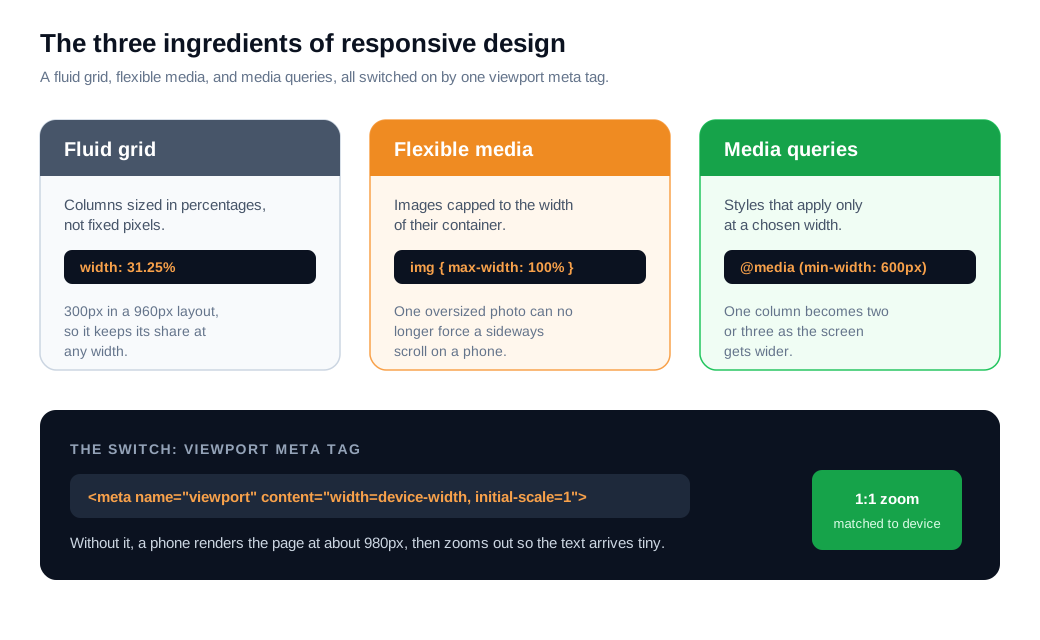
Responsive web design works by combining three techniques, a fluid grid that sizes elements in relative units, flexible media that never overflows its container, and media queries that change the layout at chosen widths, all switched on by a single viewport meta tag. Take them one at a time.
A fluid grid sizes columns in percentages instead of fixed pixels, so they keep their proportions as the window changes. Say a sidebar is meant to be 300 pixels wide inside a 960-pixel layout. Instead of writing width: 300px, you write width: 31.25%, because 300 divided by 960 is 0.3125. The sidebar now holds its share of the page at any width, and the main column flexes alongside it.
Flexible media keeps images and video from breaking that grid. The classic rule is img { max-width: 100% }, which tells an image to shrink to fit its container and never force a horizontal scrollbar on a narrow screen. Without it, one oversized photo can push the whole layout sideways on a phone.
The viewport meta tag is the switch that makes any of this apply on mobile. web.dev explains that a page without it renders at a default desktop width of around 980 pixels and then zooms out, so text arrives tiny. Adding the tag with width=device-width and initial-scale=1 tells the browser to match the layout to the real device width at a 1:1 zoom, which is the line most responsive builds start from.
Media queries do the rearranging. A media query is a CSS rule that applies styles only when a condition is true, most often a minimum or maximum screen width, which lets one column on a phone become two or three on a wider screen.
How do breakpoints work?
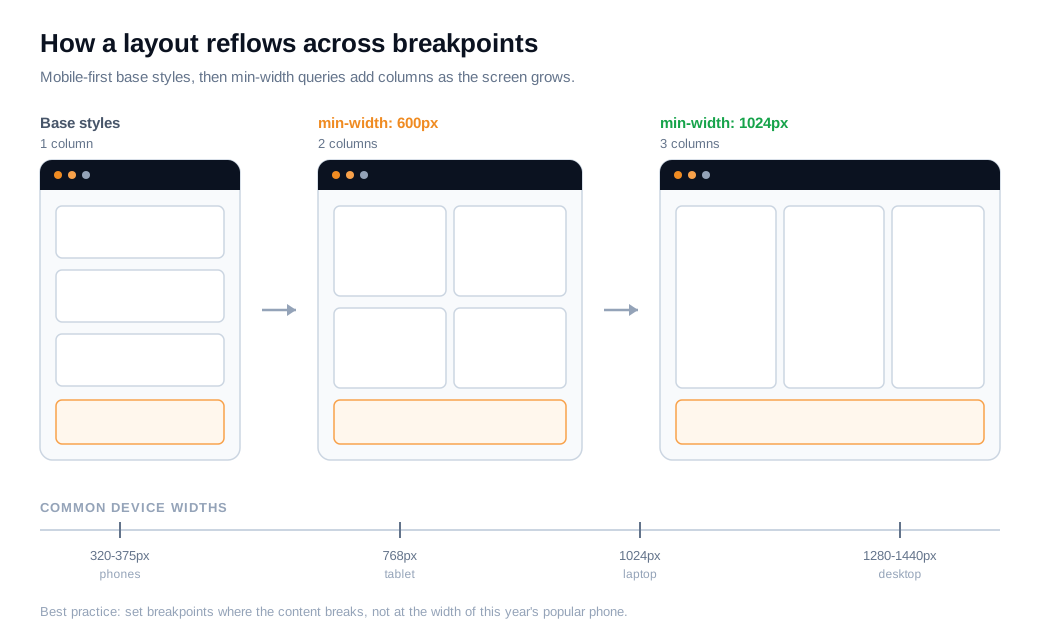
A breakpoint is a screen width at which your CSS changes the layout, defined with a media query so the page reflows from, for example, one column to two once the viewport is wide enough. Everything below the breakpoint gets one set of rules, and everything at or above it gets another.
Most modern sites are built mobile-first, meaning the base styles target the smallest screen and min-width media queries add complexity as the screen grows. A simple ladder looks like this:
- Base styles: a single column
- At min-width 600px: two columns
- At min-width 1024px: three columns and a wider content area
Device widths cluster around a few common values: roughly 320 to 375 pixels for phones, 768 for tablets, 1024 for small laptops, and 1280 to 1440 for desktops. Those are useful reference points, but the MDN guidance and most practitioners now favor content-based breakpoints: add one wherever the design starts to look cramped or too sparse, rather than chasing the width of this year's popular phone. Devices change constantly, and your content does not.
Keep the count low. BrowserStack's breakpoint guide notes that most designs need only three or four breakpoints to cover phone, tablet, and desktop well. More than that gets expensive to maintain and rarely earns its keep.
One practical rule saves a lot of pain: test at the edges. If you set a breakpoint at 768 pixels, check the layout at 767 and 769, because the moment just before a breakpoint fires is where columns collide and text wraps badly.
What is the difference between responsive and adaptive design?
Responsive design uses one fluid layout that flexes continuously across every width, while adaptive design ships a few fixed layouts and snaps to whichever preset best matches the device. Both aim to look right on any screen, and they get there by different routes.
Think of responsive design as water that takes the shape of any container it is poured into. The grid stretches and shrinks smoothly, so a browser window at 900 pixels and one at 905 pixels both get a layout tuned to that exact size. Adaptive design is closer to a set of pre-cut sizes, small, medium, and large, where the server or browser detects the device and hands over the closest fit.
Adaptive layouts can load a little faster for a known device because they can skip work the device does not need, and they give a designer pixel-level control over each version. The cost is more layouts to build and maintain, plus the risk of odd gaps at widths that fall between presets. Responsive design carries one codebase and covers every width, which is why it has become the default and why Google recommends it. Many real sites blend the two, using a fluid grid with a few adaptive decisions at key breakpoints.
Why does responsiveness matter for conversions?
Responsiveness matters for conversions because most of your visitors, and the version of your site Google ranks, are on phones, so a layout that fights the small screen leaks the exact revenue you paid to acquire. The traffic has already moved.
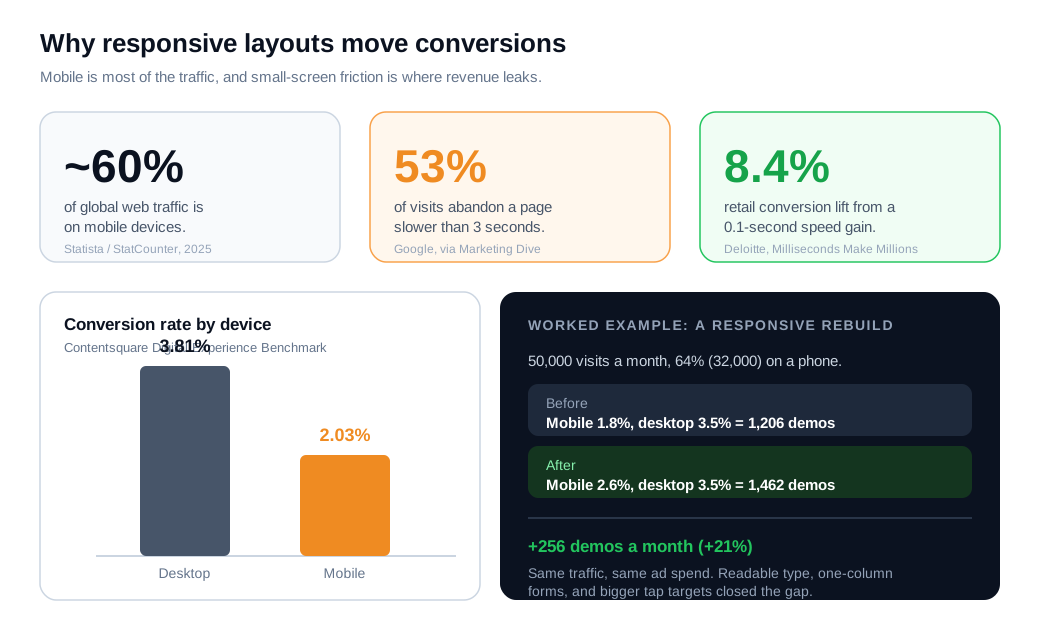
Mobile devices have generated the majority of global web traffic for years, sitting around 60% of the total through 2025 depending on how it is measured, according to StatCounter data compiled by Statista. Google indexes the mobile version of your page first, so a weak mobile layout is the version it judges even for searches that end on a desktop.
Speed is where a poorly built responsive page bleeds first, because a layout that ships full desktop images and scripts to a phone arrives slowly. Google's research, reported by Marketing Dive, found that 53% of mobile visits are abandoned when a page takes longer than three seconds to load. The upside is just as measurable: the Deloitte study Milliseconds Make Millions, which analyzed 30 million sessions across 37 brands, found that a 0.1-second improvement in mobile load time lifted retail conversion rates by 8.4% and average order value by 9.2%.
Then there is the gap responsive work exists to close. Contentsquare's digital experience benchmark put desktop conversion at 3.81% against 2.03% on mobile. Some of that is intent, since people browse on phones and buy on laptops, but a large share is friction: cramped forms, tiny tap targets, and text that needs zooming, all of which a responsive layout is built to remove.
Put numbers on it. Say a B2B site draws 50,000 visits a month and 64% of them (32,000) arrive on a phone. Mobile converts to a demo request at 1.8% and desktop at 3.5%, which is 576 demos from mobile and 630 from the 18,000 desktop visits, 1,206 in total. A responsive rebuild sets readable 16-pixel type, collapses the demo form to a single column, and enlarges tap targets, and mobile conversion climbs to 2.6%. That is 32,000 times 2.6%, or 832 mobile demos. The site now books 1,462 demos a month, about 256 more, a 21% gain, with no change in traffic or ad spend.
A clean layout still leaves some visitors with a question it does not answer, and on a phone a question with no outlet becomes a fast exit. A lightweight live chat entry point lets a hesitating visitor ask in the moment, and a well-timed proactive nudge can reach someone stuck on a pricing or checkout step before they leave.
How do you test responsive layouts?
You test responsive layouts by resizing the page across your breakpoints in browser developer tools, then confirming the result on real devices and slow connections before you launch. Simulation catches most problems, and real hardware catches the rest.
Start in Chrome DevTools. Its device mode lets you drag the viewport to any width, pick preset devices, emulate touch, and throttle the network and CPU to mimic a mid-range phone on a weak signal. As web.dev notes, you can also switch on the media query view to see your breakpoints drawn as colored bars, then click a bar to jump to that layout. Firefox has a similar Responsive Design Mode that highlights which media queries are active at each width, which helps when a breakpoint misbehaves.
Test at the breakpoint edges as well as the comfortable middle of each range. A layout that looks fine at 375 and 1440 pixels can still break at 767, one pixel below a tablet breakpoint, where a two-column grid is trying to fit in phone width. Check both orientations too, since a landscape phone is wider than a portrait tablet.
Simulators only go so far. Real devices expose things an emulator hides: actual touch accuracy, system fonts, rendering quirks, and how the page feels on a real connection. A cloud service such as BrowserStack runs your site on physical phones and tablets for a final pre-launch pass, and a rough Pareto split holds here, where browser tools catch most bugs and real devices catch the stubborn remainder.
Run a short checklist at each breakpoint: no horizontal scrolling, tap targets at least 44 pixels, body text around 16 pixels so nobody zooms, forms in a single column, and images that scale without overflowing. If all five hold from the smallest phone to the widest desktop, the layout is responsive in practice and not only on paper.
Key takeaways
- Responsive web design serves one page to every screen. A fluid grid, flexible images, and media queries let a single set of HTML adapt to any width, which is why Google recommends it over separate mobile URLs.
- The three ingredients are simple. Size columns in percentages, cap images at max-width 100%, add the viewport meta tag, then use media queries to reflow the layout at chosen widths.
- Breakpoints should follow content, not devices. Build mobile-first with min-width queries, keep to three or four breakpoints, and test at the edges like 767 and 769 pixels where layouts tend to break.
- Responsive and adaptive solve the same problem differently. Responsive flexes continuously from one codebase, while adaptive snaps between a few fixed layouts and needs more of them to maintain.
- Responsiveness is a conversion lever. Mobile is roughly 60% of traffic, 53% of visits abandon a page slower than three seconds, and desktop still converts at 3.81% against 2.03% on mobile, a gap built partly from fixable friction.
- Test in the browser, confirm on real devices. DevTools device mode and Firefox's responsive mode catch most issues, and a real phone on a slow connection catches the rest before launch.
TAGS

Written by
Nilas MylerCo-founder & CTO, Glimpze
Nilas is the co-founder and CTO of Glimpze, an inbound sales tool that turns high-intent website visitors into live conversations. A former SEO consultant for some of the largest companies in Denmark, he writes about speed-to-lead, inbound sales, and conversion rate optimization — the technical and operational mechanics of turning traffic into pipeline.


