Beyond answering questions
Answering questions is table stakes. The real value of the Glimpze assistant shows up when it can do things mid-conversation — pull a hot lead onto a call, hand a tricky case to a human, capture a visitor's details, or get a meeting on the calendar. This guide covers the actions you can enable and the workflows that keep the assistant pointed in the right direction.
You will configure all of this under AI → Configuration, in the AI Actions and Workflows sections.
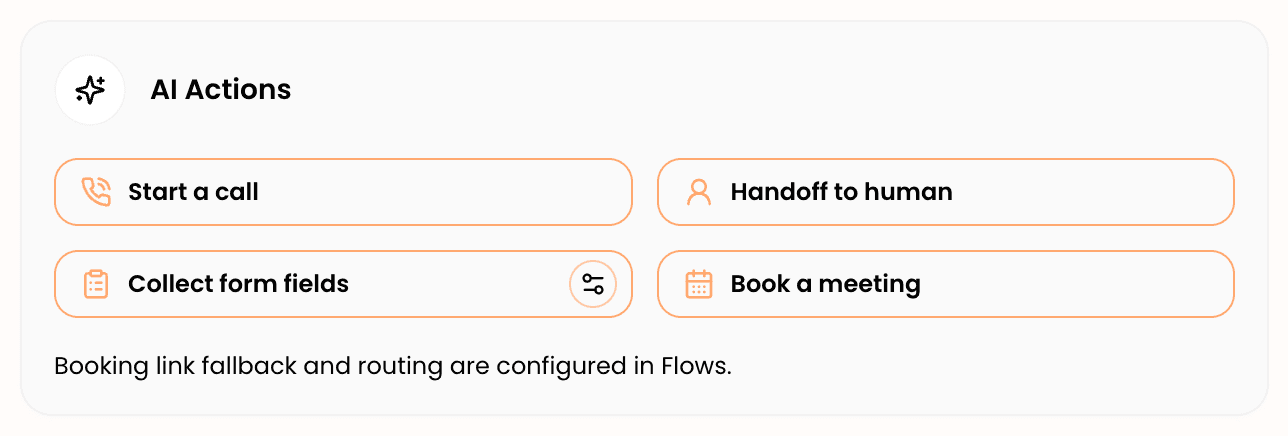
The four AI actions
Each action is a card you toggle on or off. When an action is on, the assistant can offer it at the right moment; when it is off, the assistant will not suggest it.
Start a call (on by default) — lets the assistant escalate a chat into a live video/voice call when the visitor would be better served talking to someone. Ideal for high-intent moments like pricing or demo questions.
Handoff to human (on by default) — lets the assistant pass the conversation to your team. Visitors can always trigger this themselves by sending the message “I'd like to talk to a human.” — that exact phrase is the reliable handoff trigger, so it is worth knowing if you are testing.
Collect form fields (on by default) — lets the assistant gather the details you have defined (name, email, company, whatever you have set up) as part of the conversation, instead of forcing a separate form.
Book a meeting (off by default) — lets the assistant offer a booking link so visitors can grab time on the calendar without leaving chat. Turn this on when you want the assistant actively driving meetings.
Setting up “Book a meeting”
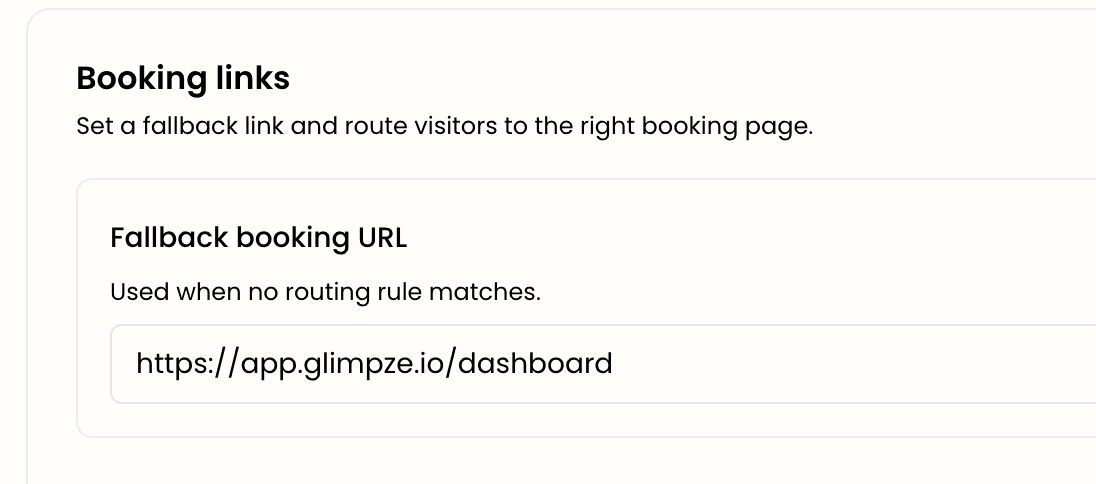
When you enable Book a meeting, the assistant needs to know which link to offer. The booking link itself — the fallback URL and any routing rules — is configured over in Flows → Booking links, not on this screen. Glimpze keeps the action toggle here and the routing logic there so a single set of booking rules can serve both the AI and the rest of your widget.
So the two-step setup is: turn Book a meeting on under AI Actions, then set your booking URL (and any country- or field-based routing) under Flows → Booking links.
Controlling what the assistant can collect
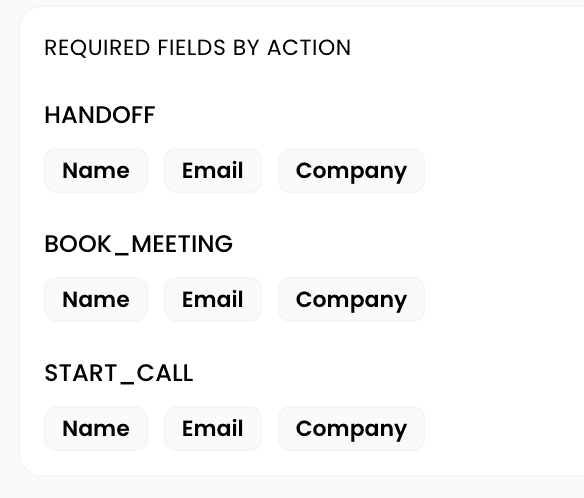
If you use Collect form fields, you can decide exactly which of your form fields the AI is allowed to ask for. Use the field-access control next to the actions to scope the assistant to only the fields that make sense for a conversational ask — keeping it from pestering visitors for everything on your form at once.
Workflows: keeping the assistant on script
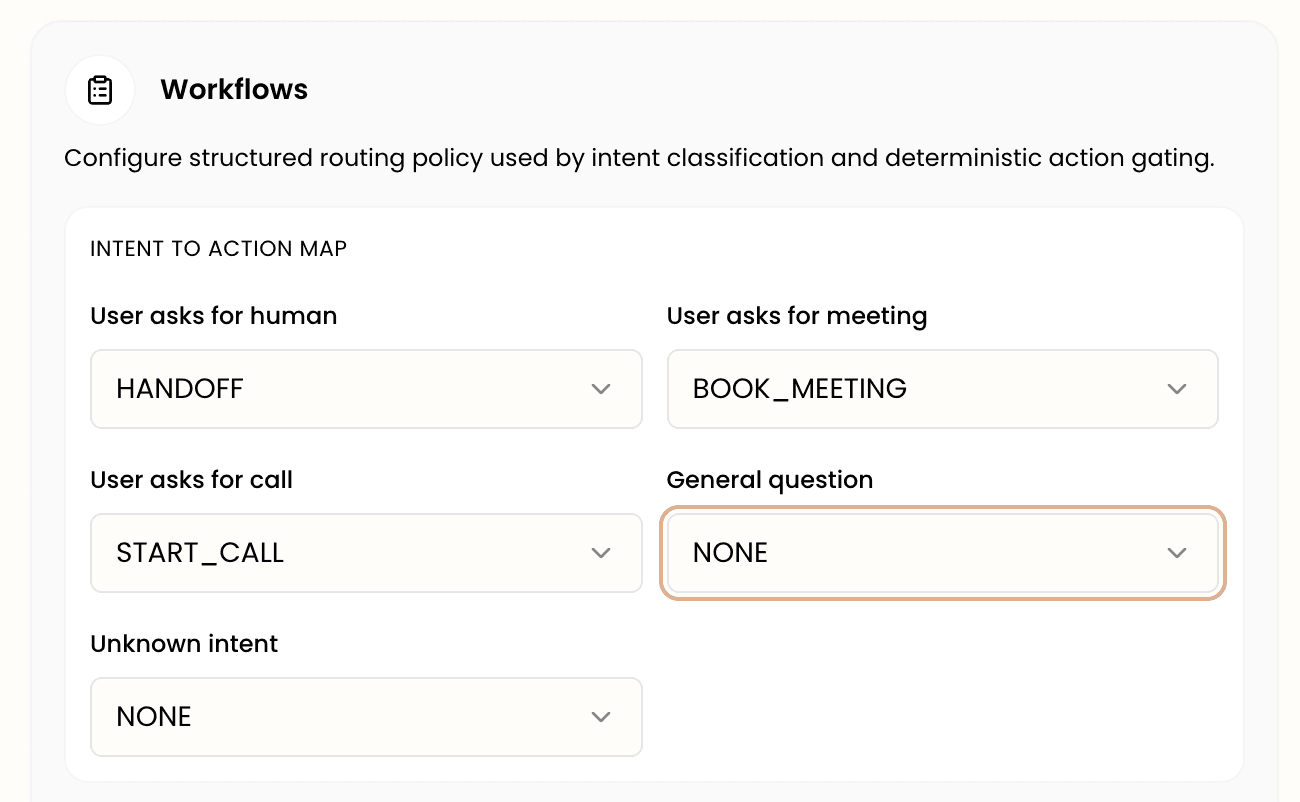
The Workflows section lets you define a policy that shapes how the assistant moves a conversation forward — the order it tends to do things, and the guardrails around when each action fires. Think of actions as the capabilities and the workflow policy as the playbook that decides when to reach for them.
A typical pattern: answer the question first, offer to book a meeting when intent is high, and hand off to a human if the visitor asks or the assistant is stuck. Set the policy to match how your team actually wants conversations to flow, rather than leaving every decision to the model in the moment.
A sensible starting configuration
For most B2B teams, a good first setup is: keep Start a call, Handoff to human, and Collect form fields on; turn Book a meeting on and wire up the booking link in Flows; and use the workflow policy to make booking the primary call-to-action once a visitor shows buying intent. Then watch a handful of real conversations and adjust which actions fire and when.
What to do next
- Welcome messages & flows — where the booking link and routing rules live (Flows).
- Proactive outreach nudges — prompt high-intent visitors before they even ask.
- Set up your AI assistant — if you have not enabled the assistant yet, start here.