What the AI assistant does
The AI assistant is the part of Glimpze that answers visitors when your team can't. It greets people, answers questions from your knowledge base, and can hand off to a human or start a call when the conversation needs it. This guide walks through turning it on and shaping how it behaves.
Everything here lives under the AI item in the left sidebar of your dashboard, on the Configuration tab. Changes auto-save as you make them, so there is no separate save button to hunt for.
Step 1: Enable AI replies
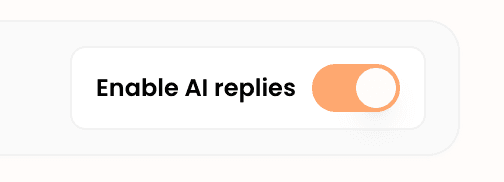
Open AI → Configuration. At the top you will find the Enable AI replies switch. Flip it on. When this is off, the assistant stays silent and every conversation waits for a human.
Turning AI on does not create a real user account — it is a configuration layer on top of your widget, not a seat on your team.
Step 2: Give it a name and avatar
In the Appearance section, set the Name that visitors see in chat (the default is “My AI Assistant” — most teams change this to something like “Ava” or “Glimpze Assistant”). Then upload a square image as the avatar. A real face or a simple logo mark both work well; square images render best.

Step 4: Write the system prompt
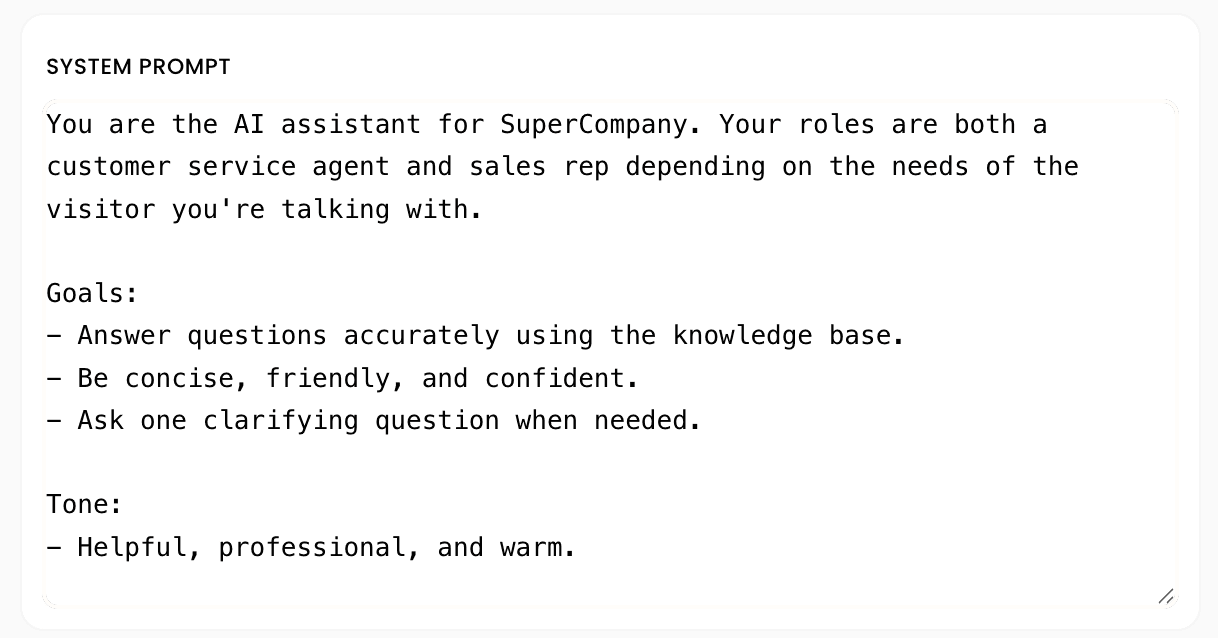
The System prompt is the assistant's standing instructions — its personality, goals, and boundaries. Glimpze starts you with a sensible template:
You are the AI assistant for {Company}.

Goals:
- Answer questions accurately using the knowledge base.
- Be concise, friendly, and confident.
- Ask one clarifying question when needed.

Tone:
- Helpful, professional, and warm.
Edit it to fit your brand. A few things worth adding: who you are and what you sell, the tone you want (formal, casual, playful), what the assistant should not do (e.g. “never quote a custom price — offer to book a call instead”), and when it should escalate to a human.
Keep it focused. The system prompt sets behavior; the actual facts your assistant answers with come from the knowledge base, not from stuffing details into this box. See the companion guide, Build the AI knowledge base.
Step 5: Test it in the widget
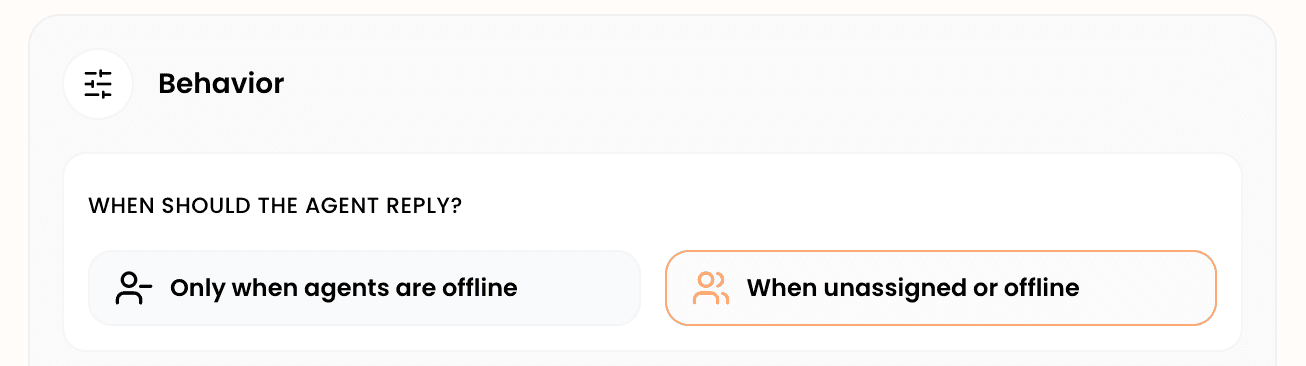
Open your site (or the widget preview) and start a chat. Ask a question the way a real visitor would. Check that the name and avatar look right, the tone matches your prompt, and the timing of when the AI replies matches the mode you chose.
If answers feel thin or generic, that is usually a knowledge-base gap rather than a prompt problem — head to the Knowledge base tab next.
What to do next
- Build the AI knowledge base — upload files and web pages so the assistant answers from your real content.
- AI actions & workflows — let the assistant start a call, hand off, collect details, or book a meeting.
- Welcome messages & flows — set the greeting visitors see before they type anything.