
On this page
- What is co-browsing?
- How does co-browsing work?
- What are the different types of co-browsing?
- Co-browsing vs screen sharing: what is the difference?
- What are the best use cases for co-browsing in sales and support?
- Is co-browsing secure and private?
- How do you add co-browsing to your site?
- Key takeaways
- Sources
A customer is three fields into a mortgage application on your site. One field asks for a number they do not have in front of them, so they stop, tell themselves they will finish later, and never come back. Your form logs one more abandon. Two days later they call support, mildly annoyed, and the agent spends nine minutes trying to picture a screen they cannot see.
Co-browsing removes that blind spot. With one click, the agent joins the exact page the customer is on and can point, scroll, and fill fields alongside them, in the same browser, with no download. This guide covers what co-browsing is, how it works, the types you will run into, how it differs from screen sharing, where it earns its keep in sales and support, whether it is safe, and how to add it to your site.
What is co-browsing?
Co-browsing (also called collaborative browsing or co-surfing) is a technology that lets two people, usually a customer and an agent, view and interact with the same web page at the same time. The customer stays on your site in their own browser. The agent joins a synchronized view of that one page and can highlight elements, scroll, and, in most tools, click and type right alongside the customer.
Two things separate it from what people assume. There is no video of the customer's desktop and no file to install for the customer. And the agent's reach is limited to the page where the co-browse code runs, so the rest of the customer's machine stays private. Think of it as sitting at the same keyboard from two different cities, but only for the tab that matters.
How does co-browsing work?
Co-browsing works by capturing the structure of the web page, the Document Object Model (DOM), on the customer's side and rebuilding it in real time on the agent's side, so both people see the same page rendered by their own browsers. A small piece of JavaScript on your site acts as the bridge, and only changes to the page travel between the two.
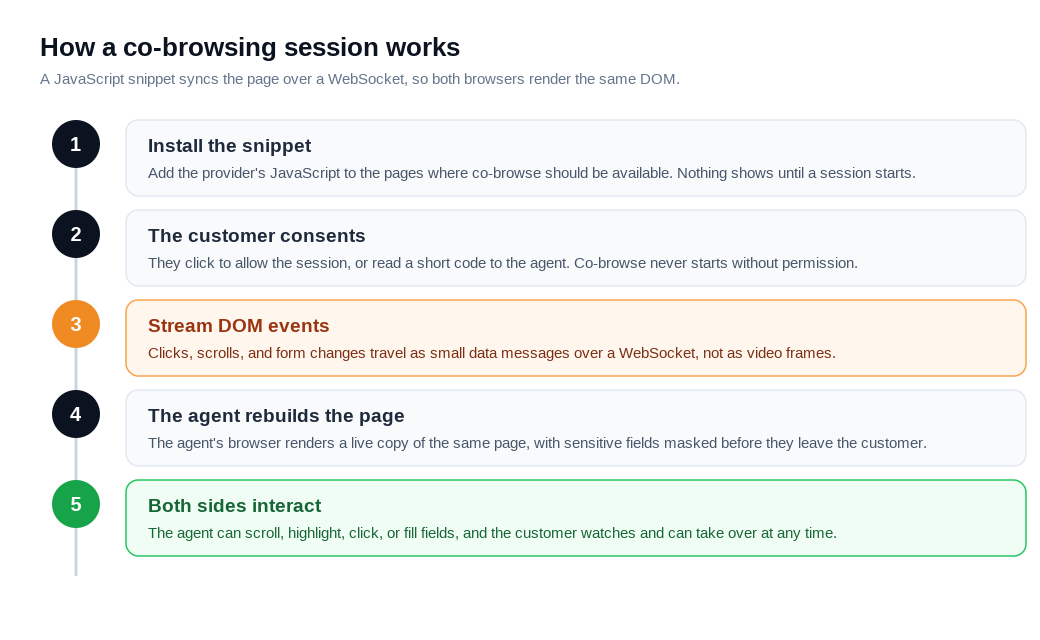
Here is the path a session takes:
- Install the snippet. You add the provider's JavaScript library to the pages where you want co-browse available. Nothing shows until a session starts.
- The customer starts or accepts a session. Co-browse requires consent. The customer clicks a button in the chat window, or reads a short session code to the agent, who uses it to connect.
- The library streams DOM events. Clicks, scrolls, form changes, and page navigations travel as small data messages that describe changes to the page's DOM, usually over a WebSocket connection, rather than as video frames.
- The agent's browser rebuilds the page. The agent sees a live copy of the same page, with sensitive fields masked before they ever leave the customer's browser.
- Both sides interact. Depending on the settings, the agent can scroll, highlight, click, or fill fields, and the customer watches it happen and can take over at any time.
Because only DOM changes travel, and those are small text payloads, co-browse stays responsive even on a slow connection where a video stream would stutter. That efficiency is the main reason the technique feels instant.
What are the different types of co-browsing?
Co-browsing comes in two broad forms, and the difference is how much of the journey the agent can follow. Knowing which one a tool offers tells you what it can actually do on your site.
In-page co-browsing works within the page where the snippet already loaded. It is the lightest option, needs no plugin, and suits a single high-value screen like a checkout or an application form. Full-DOM co-browsing rebuilds the entire page structure and can follow the customer across multiple pages, through logged-in areas, and sometimes into embedded apps. It is more capable and more involved to set up. A few enterprise tools also handle document co-browsing, where both people mark up a PDF or a contract together rather than a live web page.
Co-browsing vs screen sharing: what is the difference?
The core difference is that screen sharing streams a video of one person's whole screen, while co-browsing synchronizes a single web page that both people can control. That one distinction drives every practical gap between them.
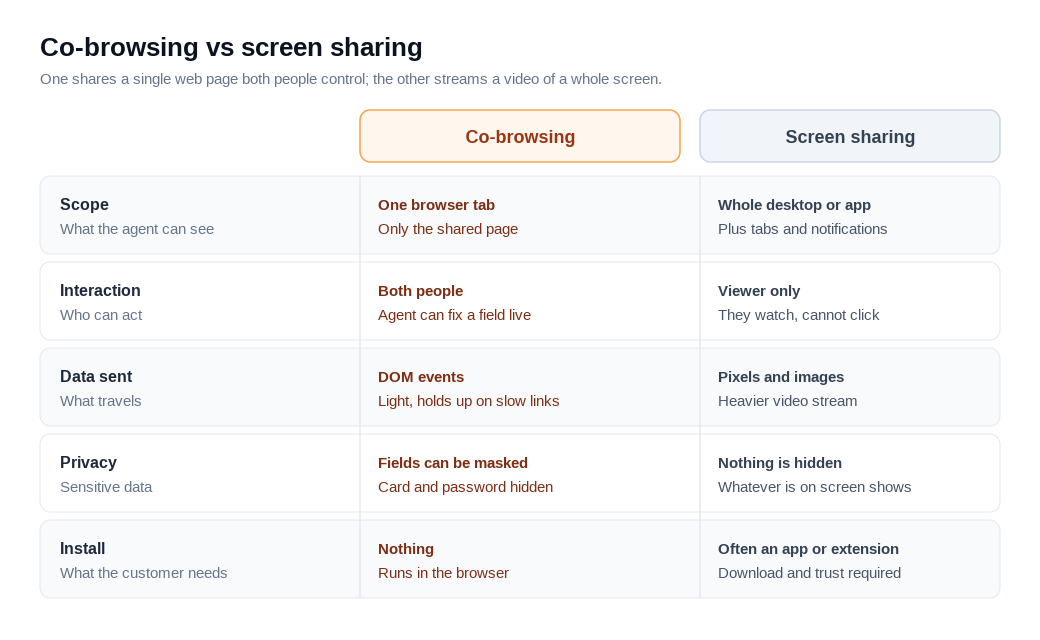
- Scope. Screen sharing shows the whole desktop or an application window, including notifications and other tabs. Co-browsing shows only the browser tab where the code runs.
- Interaction. With screen sharing, the viewer watches. With co-browsing, both people can act on the page, so the agent can fix a field instead of describing the fix.
- What is sent. Screen sharing transmits pixels and images. Co-browsing transmits DOM events, which are lighter and hold up on slow links.
- Privacy. Screen sharing exposes everything on screen with no way to hide a card number. Co-browsing can mask specific fields and never reaches beyond the shared tab.
- Install. Screen sharing often needs a desktop app or an extension. Co-browsing runs inside the browser the customer already has open.
Screen sharing still wins when you need to see something outside the browser, like a desktop app or a device setting. For anything happening on your own web pages, co-browsing is the tighter, safer fit.
What are the best use cases for co-browsing in sales and support?
Co-browsing pays off wherever a customer is stuck on a specific screen and words alone are slow, which shows up most in complex forms, checkout, onboarding, and technical troubleshooting. The value comes from removing the guesswork of "which button do you see?" and replacing it with a shared view.
On the sales side:
- Guided checkout. A rep walks a hesitating buyer through the final payment steps, clearing the one field or fee that stalled them. Cart abandonment averages around 70 percent across e-commerce, so even small recoveries add up.
- Demos and product selection. A rep co-navigates pricing and configuration pages, so the buyer sees the exact plan that fits instead of a generic tour.
- Application-heavy sales. In banking, insurance, and wealth management, agents co-fill long, multi-page applications with the customer. Guiding people through high-abandonment onboarding flows is one of the most common high-value uses in regulated industries, where a single confusing field can stall a large account for days.
On the support side:
- Form and application help. The agent spots the field the customer got wrong and corrects it live, while sensitive inputs stay hidden.
- Onboarding and activation. A success manager gives a new user a real walkthrough of setup, connecting tools and settings on the actual account.
- Troubleshooting. The agent sees the exact error state rather than asking for a screenshot, which cuts the back-and-forth that stretches out a support case and lifts first-contact resolution, the share of issues closed without a second touch.
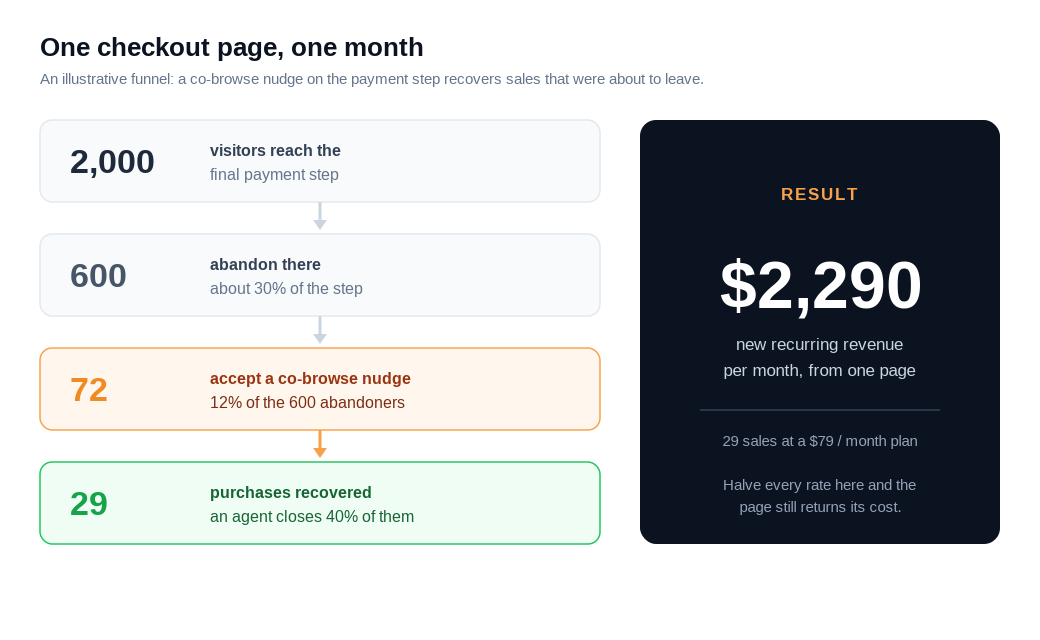
Here is the math on one page. Say 2,000 visitors a month reach your final payment step and 30 percent abandon there, which is 600 lost carts. You add a co-browse-plus-chat nudge to that page. Suppose 12 percent of those 600 abandoners (72 people) accept help, and an agent recovers 40 percent of them, about 29 completed purchases. On a $79-per-month plan, that is roughly $2,290 in new recurring revenue from a single page, most of it from clearing one point of confusion. Halve every assumption and the page still returns more than it costs to staff. The lift is directional, but it rests on a real pattern: Forrester's retail research found that shoppers who use web chat are about 2.8 times more likely to convert than those who do not.
Co-browse rarely stands alone. It usually rides on top of a conversation, so the customer can ask a question in live chat first, then escalate to a shared screen only when the problem needs one. For inbound teams, that pairing sits at the center of a fast sales motion: catch the intent, answer in text, and pull up the page together when a deal is one field away from closing.
Is co-browsing secure and private?
Yes, when it is set up correctly, and its design makes it safer than sharing a whole screen in several concrete ways. The safeguards are built into how the technology works rather than bolted on afterward.
- Scope. A session is limited to the tab where the snippet runs. The agent never sees the rest of the desktop, other tabs, or system notifications.
- Consent. Nothing starts until the customer clicks to allow it or hands over a session code.
- Field masking. Card numbers, Social Security numbers, and passwords can be blocked before they ever leave the customer's browser, so the agent sees dots or blanks where the sensitive value would be.
- No install. Running inside the browser avoids the risk that comes with asking a customer to download and trust an unknown app.
The safeguards are only as strong as their configuration. You have to define which fields to mask, and a session where the agent can click and type still lets that agent take real actions, so audit logs and per-agent permissions matter. When you evaluate providers, look for TLS 1.2 or higher in transit, AES-256 encryption, and the compliance coverage your industry needs, such as SOC 2, GDPR, HIPAA, or PCI DSS. Major banks run co-browse in production, which is a useful signal that the model holds up under scrutiny.
How do you add co-browsing to your site?
You add co-browsing by installing a provider's JavaScript snippet on the pages where you want it, configuring which fields to mask, and giving your team a console to join sessions. The steps are close to installing any chat or analytics tool.
- Pick a provider. Dedicated co-browse tools include Cobrowse.io, Glance, Surfly, and Unblu. Some live chat suites bundle a lighter version.
- Add the snippet. Paste the one-line script before the closing
</body>tag, or push it through a tag manager, on the pages where you want co-browse available. If your tool bundles co-browse with chat, the same widget install covers it, and loading the script early on the page lets a session start without delay. - Configure masking and permissions. Mark the fields to hide, and decide whether agents can only view or can also click and type.
- Wire the trigger. Give people a way in: a button inside your chat window, a short numeric code they read to an agent, or an in-widget prompt.
- Route and staff it. Send the session to the right rep fast, ideally with a Slack ping, because speed decides whether the help lands. The MIT lead-response study by James Oldroyd found a lead contacted within five minutes is about 21 times more likely to qualify than one reached after 30, and a co-browse offer that waits that long is one nobody accepts.
Not every team needs full-DOM co-browse to get most of the benefit. Plenty of sales and support conversations resolve once the customer can talk to a person and share their screen for a moment, which a tool like live video chat with screen share handles with far less setup. If you genuinely need the customer's own browser mirrored across pages with field-level masking, a dedicated co-browse product is the right call. Match the tool to the problem, and do not buy a heavier system than the page in front of you requires.
Key takeaways
- Co-browsing shares one page, not one screen. An agent and a customer view and control the same web page in real time, while the rest of the customer's device stays private.
- It runs on the DOM, not video. A JavaScript snippet streams page changes over a WebSocket, which keeps sessions fast and light even on slow connections.
- Screen sharing and co-browsing solve different problems. Reach for screen sharing when the issue lives outside the browser, and co-browsing when it lives on your own pages.
- The best fit is a stuck, high-value screen. Checkout, long applications, onboarding, and error states are where a shared view beats a written explanation.
- Security is built in, but configuration decides it. Tab-only scope, required consent, and field masking come standard, so define the masked fields and set agent permissions before you go live.
- Start light. A voice or video call with screen share often clears the moment, and full co-browse is worth adding when your pages are complex enough to need it.
TAGS

Written by
Nilas MylerCo-founder & CTO, Glimpze
Nilas is the co-founder and CTO of Glimpze, an inbound sales tool that turns high-intent website visitors into live conversations. A former SEO consultant for some of the largest companies in Denmark, he writes about speed-to-lead, inbound sales, and conversion rate optimization — the technical and operational mechanics of turning traffic into pipeline.


